

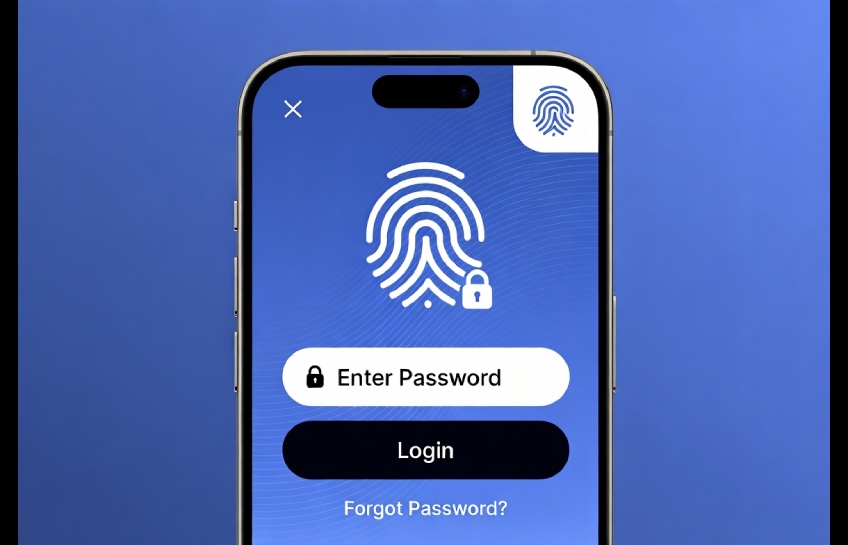
Losing access to your accounts feels awful. One wrong tap and your saved logins seem gone forever. If you use a Galaxy phone, samsung passwords are stored in a built-in tool called Samsung Pass, and most people never learn how it really works.
This guide fixes that. You’ll learn where Samsung stores your passwords, how to view them, how to fix common problems, and how to keep everything safe. No tech jargon. Just clear steps you can follow right now.
By the end, you’ll know exactly how to manage samsung passwords like a pro, even if you’ve never opened Samsung Pass before.
What Are Samsung Passwords and Why They Matter in 2026
Samsung passwords are login details your phone saves automatically through Samsung Pass, a password manager built into every modern Galaxy device. It stores usernames, passwords, and even payment cards, then fills them in for you on apps and websites.
This matters more now than ever. People manage dozens of accounts, from banking apps to streaming services. Remembering every password by memory is unrealistic, and reusing the same one across sites is risky.
Samsung Pass launched years ago as a fingerprint login tool. It has since grown into a full password manager with encryption, autofill, and cross-device sync through Samsung Cloud. Millions of Galaxy users rely on it daily without even realizing it’s running in the background.
The Complete Guide to Managing Samsung Passwords
1. Finding Where Samsung Pass Stores Your Logins
What it is Samsung Pass is a secure vault built into your phone’s settings. Think of it like a digital safe that only opens with your fingerprint, face, or PIN.
Why it matters If you don’t know where this vault lives, you can’t recover a forgotten password or fix a login error. Many users assume passwords vanish when really they’re just hidden in settings.
How it works Open Settings, then tap Accounts and Backup, then Samsung Pass. Verify your identity with biometrics. You’ll see every saved website and app login in one list.
Real world example A user upgrading from a Galaxy S22 to an S25 worried their banking app password was lost. It wasn’t. Samsung Cloud had synced it automatically, and it appeared the moment they signed into their Samsung account on the new phone.
Common mistakes People search for passwords inside Chrome or the App Store instead of Samsung Pass. Since Samsung Pass runs system-wide, it’s separate from browser-specific password tools.
Pro tip You can search within Samsung Pass by typing the website name directly, saving you from scrolling through a long list.
2. Viewing a Saved Password Step by Step
What it is This is the actual process of revealing a hidden password instead of just seeing the account name.
Why it matters Sometimes you need the real password, like when logging into a new device or sharing access with family.
How it works Inside Samsung Pass, tap the specific website or app. Tap the eye icon next to the password field. Confirm with your fingerprint or PIN. The password appears in plain text.
Real world example Someone setting up a shared Netflix account on a smart TV used this exact method to retrieve the password from their phone instead of guessing or resetting it.
Common mistakes Users often try copying the password without unlocking it first, which just copies asterisks instead of real characters.
Pro tip After viewing, use the copy icon rather than typing it manually. This avoids typos on longer, complex passwords.
3. Fixing Autofill When It Stops Working
What it is Autofill is the feature that fills in samsung passwords automatically inside apps and browsers.
Why it matters When autofill breaks, people often assume they lost their password entirely, leading to unnecessary password resets.
How it works Go to Settings, then General Management, then Passwords and Autofill. Confirm Samsung Pass is selected as your default autofill service, not Google.
Real world example A user switched phones and found autofill had reverted to Google’s password manager by default. Switching it back to Samsung Pass instantly restored all saved logins in apps.
Common mistakes Having two autofill services active at once causes conflicts, where neither works properly inside apps.
Pro tip Restart the app after changing autofill settings. This forces it to recognize the new default service.
4. Syncing Samsung Passwords Across Devices
What it is Sync means your saved logins appear on every Galaxy device linked to the same Samsung account.
Why it matters Without sync, switching phones means starting from scratch, retyping dozens of passwords manually.
How it works Enable Samsung Cloud backup for Samsung Pass under Accounts and Backup. Sign into the same Samsung account on your new or secondary device.
Real world example A person using both a Galaxy phone and a Galaxy tablet had identical saved logins on both, thanks to automatic cloud sync running in the background.
Common mistakes Assuming sync is instant. It can take a few minutes, especially over mobile data instead of Wi-Fi.
Pro tip Manually force a sync by opening Samsung Pass settings and tapping “Sync now” if changes aren’t appearing quickly.
5. Securing Your Samsung Pass Vault
What it is Security settings control who can access your saved samsung passwords, even if someone unlocks your phone.
Why it matters A stolen or borrowed phone shouldn’t mean stolen accounts. Extra protection layers keep your vault locked separately.
How it works Inside Samsung Pass settings, enable an additional lock method, like requiring biometrics every time the app opens, separate from your phone’s main lock screen.
Real world example A parent letting their child use their phone for games enabled a separate Samsung Pass lock, so the child couldn’t accidentally open banking logins.
Common mistakes Relying only on the phone’s screen lock. If someone knows your PIN, they’d have full access without a second layer.
Pro tip Turn on auto-lock for Samsung Pass after a short period of inactivity, not just when the screen turns off.
Top Benefits of Using Samsung Pass for Your Passwords
- One vault for everything. All your logins live in a single, searchable place instead of scattered notes or memory. Example: no more guessing which email you used for an old shopping account.
- Biometric-only access. Fingerprint and face unlock replace typing master passwords. Example: unlocking your vault takes under a second at checkout.
- Automatic cross-device sync. New Galaxy devices inherit your saved logins instantly. Example: upgrading phones no longer means hours of re-entering passwords.
- Built-in password health checks. Samsung Pass flags weak or reused passwords. Example: it warned one user their email and banking password were identical.
- No extra app needed. It’s pre-installed on Galaxy devices, unlike third-party password managers. Example: users save storage space and avoid subscription fees.
- Encrypted storage. Samsung Pass uses hardware-backed encryption through Samsung Knox. Example: even if cloud data were intercepted, it stays unreadable without your device.
Common Challenges With Samsung Passwords and How to Fix Them
Challenge 1: Forgotten master authentication If biometrics fail, some users get locked out temporarily. Solution: set up a backup PIN inside Samsung Pass settings before this happens.
Challenge 2: Passwords not saving automatically Some apps block auto-save prompts. Solution: manually add the login inside Samsung Pass using the plus icon.
Challenge 3: Duplicate entries after reinstalling apps Reinstalling can create duplicate saved logins. Solution: open Samsung Pass and delete the older, outdated entry.
Challenge 4: Confusion between Samsung Pass and Google Passwords Both can be active, causing autofill conflicts. Solution: pick one as your default under Passwords and Autofill settings, and avoid running both simultaneously.
Beginner to Expert Roadmap for Samsung Pass
Beginner
- Open Samsung Pass and explore your saved logins.
- Set biometric unlock as your primary access method.
- Turn on Samsung Cloud sync for backup.
Intermediate
- Set Samsung Pass as your default autofill service.
- Review flagged weak or duplicate passwords monthly.
- Add a backup PIN in case biometrics fail.
Advanced
- Use Samsung Pass alongside Knox Vault for sensitive financial apps.
- Regularly audit old, unused saved logins and delete them.
- Combine Samsung Pass with two-factor authentication for critical accounts like banking and email.
Top Tools and Resources for Password Management
| Tool | What It Does | Best For | Cost |
|---|---|---|---|
| Samsung Pass | Built-in password vault and autofill | Galaxy device owners | Free |
| Samsung Knox | Extra hardware-level security layer | Sensitive data protection | Free (built-in) |
| Google Password Manager | Browser and Android-wide password storage | Cross-platform Android users | Free |
| Bitwarden | Open-source third-party password manager | Users wanting cross-brand control | Free / paid tiers |
| 1Password | Premium password manager with advanced sharing | Families and businesses | Paid subscription |
Samsung Pass vs Other Password Managers
| Name | Pros | Cons | Best For | Cost |
|---|---|---|---|---|
| Samsung Pass | Pre-installed, biometric-first, Knox security | Galaxy-only, limited cross-brand support | Galaxy phone users | Free |
| Google Password Manager | Works across all Android brands and Chrome | Less hardware-level security | Multi-brand Android users | Free |
| Bitwarden | Strong encryption, open-source | Slightly technical setup | Privacy-focused users | Free / paid |
| 1Password | Excellent family sharing tools | Requires subscription | Families and teams | Paid |
| LastPass | Long-standing, browser extensions | Past security incidents | Casual users | Free / paid |
Myths vs Facts About Samsung Passwords
Myth 1: Samsung Pass stores passwords in plain text. Fact: It uses encryption backed by Samsung Knox, so data isn’t readable without device authentication.
Myth 2: Switching phones means losing all saved passwords. Fact: Samsung Cloud sync transfers your vault automatically when you sign into the same account.
Myth 3: Samsung Pass and Google Password Manager work together seamlessly. Fact: Running both at once often causes autofill conflicts unless one is set as default.
Myth 4: Anyone who unlocks your phone can see your passwords. Fact: Samsung Pass can require a separate biometric or PIN check, even if the phone itself is unlocked.
Myth 5: Deleting an app deletes its saved password too. Fact: The saved login stays inside Samsung Pass until you manually remove it.
The Future of Samsung Passwords and Password-Free Logins
Samsung is pushing toward passkeys, a passwordless login method using biometrics instead of typed passwords. Samsung Pass already supports passkeys for select apps and websites, replacing traditional passwords entirely for some accounts.
Expect more banking and shopping apps to adopt passkeys over the next two to three years. This means samsung passwords may gradually shift from stored text to biometric-only logins for many services.
Users should start linking accounts that support passkeys now, since early adoption often includes added security bonuses and smoother login experiences going forward.
Frequently Asked Questions
How do I see my saved samsung passwords? Open Settings, then Accounts and Backup, then Samsung Pass. Tap any saved login and confirm with biometrics to reveal the password.
Are samsung passwords safe from hackers? Yes, Samsung Pass encrypts data using Samsung Knox, a hardware-level security system that protects stored logins even if cloud data is intercepted.
Can I transfer samsung passwords to a new phone? Yes, signing into the same Samsung account on a new device automatically syncs your saved logins through Samsung Cloud.
Why isn’t Samsung Pass autofilling my passwords? Check that Samsung Pass is set as your default autofill service under Settings, General Management, Passwords and Autofill.
Can I use Samsung Pass on non-Samsung devices? No, Samsung Pass is exclusive to Galaxy devices and doesn’t support other Android brands or iPhones.
What happens if I forget my Samsung Pass PIN? You’ll need to verify your identity through your Samsung account recovery process, which may require resetting saved data.
Is Samsung Pass better than Google Password Manager? It depends on your needs. Samsung Pass offers stronger hardware security on Galaxy devices, while Google works better across multiple Android brands.
Conclusion
Managing samsung passwords doesn’t have to be confusing. You now know where they’re stored, how to view and fix them, and how to keep your vault secure. Samsung Pass syncs across devices, blocks unauthorized access, and is moving toward a passwordless future with passkeys.
Take a few minutes today to open Samsung Pass, check your saved logins, and turn on biometric locking if you haven’t already. A few small steps now save you from major headaches later.
Your passwords are only as strong as the habits protecting them, so start building better ones today.
Real Also :Google Password Manager: Your Complete Guide to Safer Sign-Ins in 2026

Other Articles

No Comment! Be the first one.