

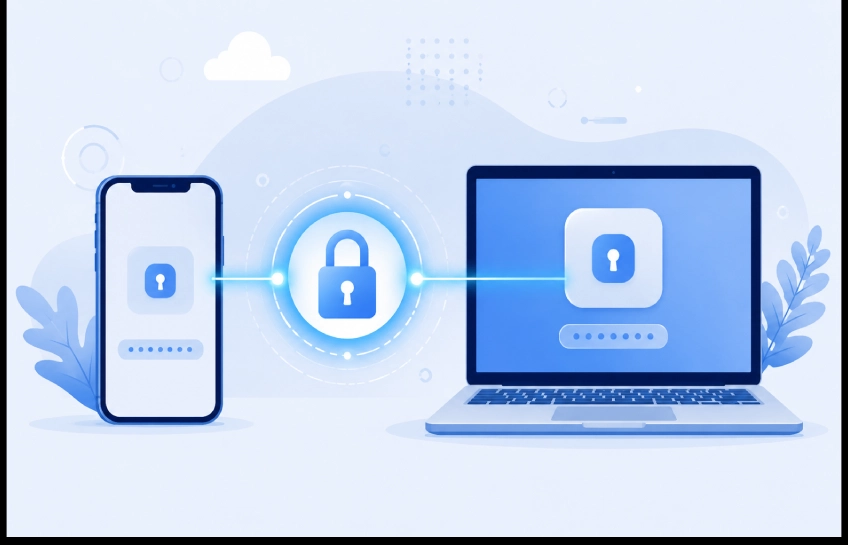
Most people reuse the same password on ten different websites. That’s how hackers break into your email, your bank, and your social media in one shot. Google password manager is Google’s free fix for this problem. It saves your logins, creates strong new passwords, and fills them in for you automatically.
This guide is for beginners who want an easy way to stay safe online without buying extra software. You’ll learn what Google Password Manager does, how it works, where it falls short, and how it stacks up against paid tools like 1Password or Dashlane. By the end, you’ll know exactly whether it’s the right fit for you — and how to set it up in minutes.
Let’s start with the basics.
Background & Context
Google Password Manager is a free credential storage tool built into Chrome and Android. It saves your usernames and passwords when you sign into a site, encrypts them, and syncs them across your devices through your Google Account.
The tool has grown a lot since it first launched as a simple Chrome autofill feature. Google Password Manager can help create, save and manage your passwords and passkeys for all your other accounts, and it securely stores and syncs them across devices, autofilling them the next time you need them. In 2026, it plays a bigger role than ever, especially as Google pushes passkeys as a replacement for passwords entirely.
Google’s June 2026 update added support for the Credential Exchange standard, letting Android users import and export passwords and passkeys between Google Password Manager and third-party password managers more easily, which makes switching tools simpler and reduces platform lock-in. This shows Google is treating password security as an ongoing priority, not a one-time feature.
For casual Chrome and Android users, google password manager has become the default way to stay organized online — no download, no subscription, just built-in protection.
Main Body
1. Password Storage and Autofill
What it is: This is the core feature. Every time you type a login on a website, Chrome or Android offers to save it. Later, it fills the fields in for you automatically.
Why it matters: You stop typing (and forgetting) passwords. That means fewer weak, repeated passwords out of pure laziness.
How it works: Google Password Manager captures login information automatically when you sign into websites or apps, encrypts the data, and syncs everything across your devices through your Google Account. On your phone, you just tap the suggested login. On desktop, Chrome fills it in the moment you click the field.
Real world example: A student switches from her laptop to her Android phone mid-assignment and logs into her school portal. Chrome autofills the password instantly because it already synced from her laptop session.
Common mistakes: People assume autofill is “set and forget.” But if your Google Account password is weak, everything saved inside is exposed too.
Pro tip: Turn on two-factor authentication for your Google Account itself. That one step protects everything stored inside Google Password Manager.
2. Password Generator
What it is: A built-in tool that creates random, hard-to-guess passwords for new accounts.
Why it matters: Most data breaches happen because people reuse simple passwords like “password123.” A generated password removes that risk completely.
How it works: When you sign up for a new site, Chrome suggests a strong password automatically. You just click to accept it.
Real world example: Signing up for a new streaming service, Chrome suggests something like “xK9!mP2qLv8f” instead of letting you type your usual password.
Common mistakes: The generator is fairly limited — it creates passwords up to 15 characters long, but you can’t choose specific characters, generate passphrases, or make passwords that are easy to read or say. People sometimes assume it works exactly like premium generators, but it’s more basic.
Pro tip: For accounts holding sensitive info (banking, taxes), manually increase password length beyond what’s suggested if the site allows it.
3. Password Checkup and Security Alerts
What it is: A built-in audit tool that scans your saved passwords for weaknesses.
Why it matters: You might not know a password was leaked in a data breach years ago. This tool tells you before someone else uses it against you.
How it works: One click runs Password Checkup, which lays out compromised, reused, and weak passwords in your vault. Google compares your saved logins against known breach databases.
Real world example: A user runs Checkup and discovers 11 compromised passwords from an old breach they never heard about — including one still used for their email.
Common mistakes: People run the checkup once and never again. New breaches happen constantly, so this should be a monthly habit, not a one-time task.
Pro tip: Fix compromised passwords first, then reused ones — those cause the most damage if leaked.
4. Passkey Support
What it is: A newer, more secure sign-in method that replaces the password entirely with your fingerprint, face scan, or device PIN.
Why it matters: Passwords can be stolen or guessed. Passkeys can’t be phished the same way because there’s no shared secret to steal.
How it works: Passkeys and device-bound authenticators use public-key cryptography tied to a specific device or biometric, making phishing technically impossible. Google Password Manager stores and syncs these passkeys just like passwords.
Real world example: Google launched passkeys for Google Accounts on World Password Day in 2023, and many websites and apps have adopted them since. Logging into your Google Account today can mean just a fingerprint tap — no typing at all.
Common mistakes: Assuming every site supports passkeys yet. Adoption is growing but still uneven across the web.
Pro tip: Switch to a passkey wherever a site offers one — it’s faster and safer than any password, generated or not.
5. Cross-Device Sync
What it is: The feature that keeps your passwords available on every device signed into your Google Account.
Why it matters: You save a password once and use it everywhere — phone, laptop, tablet.
How it works: On Chrome desktop, credentials sync automatically when you’re signed in, and Android users get native integration through system settings for autofill across all apps.
Real world example: You save a new work login on your office laptop. That evening, it’s already available on your phone without any extra steps.
Common mistakes: Passkey syncing currently only works Android-to-Android — passkeys created on Windows or macOS through Chrome don’t sync to other devices the same way. People assume everything syncs everywhere, but that’s not fully true yet.
Pro tip: If you use multiple operating systems, check which passkeys are device-local before relying on them across your whole setup.
Top Benefits
- Completely free — Google’s solution requires no separate app installation or subscription and works immediately with Chrome and Android. Example: no monthly fee compared to $3–5/month for premium tools.
- Zero extra setup — It’s already built into Chrome and Android. Example: a new phone owner is protected the moment they sign into their Google Account.
- Strong encryption — Google Password Manager uses the highest level of available encryption, 256-bit AES with PBKDF2-HMAC-SHA512. Example: even if data were intercepted, it would be unreadable without the key.
- Built-in breach monitoring — Password Checkup flags compromised logins instantly. Example: catching a leaked password before it’s used for fraud.
- Passkey-ready — You’re set up for the password-free future without switching tools. Example: logging into Gmail with just a face scan.
- Works across major platforms — Google Password Manager works across Windows, macOS, Linux, iOS, Android, and ChromeOS through Chrome browser integration. Example: a Windows user still gets protection through the Chrome extension.
Challenges & Solutions
Challenge 1: Google holds the encryption keys by default. By default, your passwords are encrypted and decrypted on Google’s servers, and your Google Account is the key to unlocking them — this isn’t a zero-knowledge design like 1Password or Bitwarden. Solution: enable the sync passphrase or on-device encryption feature so Google never sees your raw data.
Challenge 2: Limited cross-browser support. It works best inside Chrome. Solution: use the Chrome extension or app on other browsers, or accept the limitation if you’re fully in Google’s ecosystem.
Challenge 3: No family sharing controls. Password sharing through Chrome’s built-in features lacks sophisticated permission controls compared to dedicated family password managers. Solution: for shared household accounts, consider a dedicated family plan from a premium provider.
Challenge 4: Basic password generator. It caps at 15 characters with limited customization. Solution: manually adjust generated passwords for high-value accounts where the site allows longer strings.
Beginner to Expert Roadmap
Beginner:
- Sign into Chrome or Android with your Google Account.
- Turn on “Offer to save passwords” in settings.
- Run your first Password Checkup.
Intermediate:
- Enable on-device encryption for stronger privacy.
- Start replacing old passwords with passkeys on supported sites.
- Set up two-factor authentication on your Google Account.
Advanced:
- Use the Credential Exchange feature to move passwords between tools without losing data.
- Audit third-party app access to your Google Account regularly.
- Combine Google Password Manager with a hardware security key for critical accounts.
Top Tools & Resources
| Name | What it does | Best for | Cost |
|---|---|---|---|
| Google Password Manager | Built-in password/passkey storage | Chrome & Android users | Free |
| 1Password | Premium vault with sharing | Families and teams | Paid subscription |
| Bitwarden | Open-source password manager | Privacy-focused users | Free/paid tiers |
| RoboForm | Advanced form filling | Power users on Chrome | Free/paid tiers |
| Dashlane | Dark web monitoring included | Users wanting extra alerts | Paid subscription |
Comparison Table
| Name | Pros | Cons | Best For | Cost |
|---|---|---|---|---|
| Google Password Manager | Free, built-in, passkey support | Limited sharing, Google-tied keys | Everyday Chrome/Android users | Free |
| 1Password | Zero-knowledge encryption, family plans | Paid only | Families & businesses | Paid |
| Bitwarden | Open-source, affordable | Steeper learning curve | Privacy-conscious users | Free/Paid |
| Dashlane | Dark web monitoring | Pricier tiers | Users wanting extra alerts | Paid |
Myths vs Facts
Myth 1: “Google Password Manager isn’t secure enough to use.” Fact: It’s safe in 2026, using standard AES and TLS encryption, though it’s not the most private option available.
Myth 2: “It syncs everything perfectly across all devices and platforms.” Fact: Passkey syncing currently only supports Android-to-Android, not full cross-platform sync.
Myth 3: “Passwords are the safest way to log in.” Fact: Passwords can be phished, replayed, or stolen by infostealers, while passkeys remove that shared secret entirely.
Myth 4: “You have to pay for real password security.” Fact: Google Password Manager offers strong encryption and breach monitoring for free.
Myth 5: “It’s only useful in Chrome.” Fact: It also works across Windows, macOS, Linux, iOS, and ChromeOS through Chrome integration.
Future Outlook
Passwords are slowly disappearing. Google’s rollout of the Credential Exchange standard in June 2026 is a clear signal that portability between password managers will keep improving. Expect more websites to support passkeys by default over the next two to three years.
Google password manager users should watch for expanded family sharing tools, since this remains one of its weakest areas compared to paid competitors. On-device encryption and passphrase protection will likely become more prominent defaults rather than optional settings.
Prepare now by turning on passkeys wherever possible and reviewing your Password Checkup results monthly.
Frequently Asked Questions
Is Google Password Manager safe to use in 2026? Yes. It’s safe if you understand its limits — it uses standard AES and TLS encryption, but isn’t the most private option since Google holds the keys by default.
Is Google Password Manager free? Yes, completely. It requires no separate app or subscription and works immediately with Chrome and Android.
Can I use Google Password Manager without Chrome? Yes — it works across Windows, macOS, Linux, iOS, Android, and ChromeOS through Chrome browser integration.
Does Google Password Manager check for leaked passwords? Yes. Its Password Checkup feature scans for compromised, reused, and weak passwords in one click.
What’s the difference between passwords and passkeys in Google Password Manager? Passkeys use your device biometric or PIN instead of a typed password, making them harder to phish, while regular passwords remain a shared secret that can be stolen.
Can I move my passwords out of Google Password Manager? Yes — Google’s June 2026 update added Credential Exchange support, letting Android users import and export passwords and passkeys with third-party managers.
Should families use Google Password Manager? It works, but password sharing through Chrome lacks sophisticated permission controls compared to dedicated family password managers, so larger households may want a paid alternative.
Conclusion
Google Password Manager gives you free, built-in protection that beats not using a password manager at all. It stores your logins, generates stronger passwords, checks for breaches, and now supports passkeys for a password-free future.
It’s not perfect — sharing controls are basic, and Google holds your encryption keys by default unless you turn on extra protection. But for everyday Chrome and Android users, google password manager is a smart, zero-cost starting point.
Your next step: open your Google Account settings today and run a Password Checkup. It takes one click and could save you from a breach you don’t even know about yet.
Passwords fade with time. Good security habits don’t.


No Comment! Be the first one.