

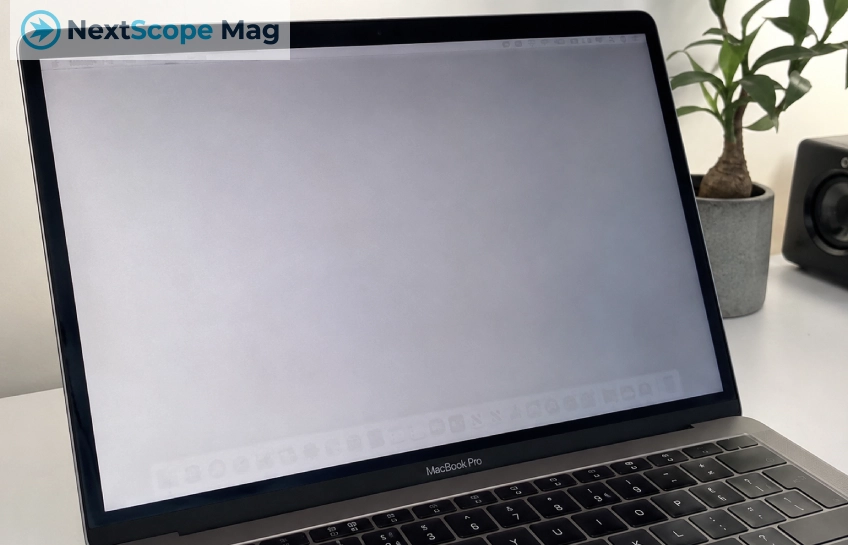
If you’ve noticed weird shadows, ghost images, or patchy discoloration on your MacBook Pro display, you’re not imagining things. MacBook Pro screen burn marks are a real and fairly common issue — and depending on what caused them, they might be fixable without spending a cent.
This article breaks down what these marks actually are, what causes them, how to check if yours are serious, and what your options are if they don’t go away on their own.
What Are MacBook Pro Screen Burn Marks?
MacBook Pro screen burn marks are basically persistent visual artifacts on the display. They show up as faint outlines, shadows, blotchy patches, or ghost images that stay on screen even after the content changes. You might see the shape of your dock, a menu bar shadow, or a faint outline of a browser window that was open for a long time.
People often use the terms “burn-in” and “image retention” interchangeably, but they’re slightly different things. Image retention is temporary — the display has “memorized” a static image but will recover after some rest. True burn-in is more permanent, where pixel wear has caused lasting damage. On MacBook Pro Retina displays, you’re more likely dealing with image retention than full burn-in, though both do get reported.
Some marks aren’t even from pixel wear at all. They can come from physical pressure, heat buildup, or damage to the anti-reflective coating on the screen. Those look more like smudges or inkblot-style patches and behave very differently from standard ghosting.
Common Causes of Screen Burn on MacBook Pro
Understanding what causes MacBook Pro screen burn marks helps you figure out both how to fix them and how to avoid them in the future. The most frequent culprits are:
- Static content left on screen for too long — things like the menu bar, dock, spreadsheet rows, or a paused video frame. When these stay in place for hours on end, the pixels underneath get stressed.
- High brightness settings — running the display at maximum brightness puts extra wear on the pixels and speeds up the damage over time.
- Heat and poor ventilation — heavy workloads generate a lot of heat, and if the MacBook’s venting is blocked (like when it’s sitting on a soft surface), that heat can stress the panel.
- Physical pressure on the lid — closing the lid on a pen, cable, or keyboard cover can leave pressure marks that look like burn marks but are actually physical damage.
- Anti-reflective coating wear — the coating on MacBook Pro screens can peel or degrade, leaving stain-like marks that are often mistaken for burn-in.
Most of the time, it’s one of the first two. Long sessions with a static desktop setup at high brightness are the most common recipe for image retention on MacBook Pro displays.
How to Tell If Your MacBook Pro Has Screen Burn Marks
Before you start worrying too much, it’s worth doing a quick check to confirm what you’re actually looking at.
Here’s how to test it:
- Set your background to a plain white or plain black image and look closely. If you see shadows, patches, or outlines that don’t belong there, that’s a sign of burn-in or image retention.
- Connect your MacBook to an external monitor and display the same image on both. If the marks appear only on the MacBook’s screen, it’s a panel issue — not a software glitch.
- Boot into Safe Mode (hold Shift during startup on Intel Macs, or use the startup options on Apple Silicon). If the marks still show up in Safe Mode, the problem is hardware, not software.
- Take a screenshot and open it on another device. If the marks don’t appear in the screenshot, they’re on the physical display — not in the graphics output.
These steps can save you from panicking unnecessarily. Sometimes what looks like burn-in is just a display calibration glitch or a temporary software issue.
Quick Checks Before You Panic — Software and Settings
A lot of people assume the worst the moment they see something odd on their screen. But before assuming you need a new display, try a few simple things first.
Restart your MacBook — seriously. Some display weirdness is software-related and disappears after a reboot. After restarting, reset the NVRAM (hold Option + Command + P + R on Intel Macs during startup). This clears some stored display settings and can clear up minor visual glitches.
Check for macOS updates too. Apple occasionally pushes fixes for display-related bugs, and running an outdated version of macOS could be part of the problem. Go to System Settings → General → Software Update and install anything pending.
Also check your display settings. Go to System Settings → Displays and make sure True Tone and auto-brightness are turned on. These features help the display adapt more naturally and reduce stress on the pixels during long sessions.
If none of this clears things up, the issue is likely in the panel itself — but don’t give up yet.
DIY Methods to Reduce MacBook Pro Screen Burn Marks
If the marks are from image retention (not physical damage), there are a few things you can try at home before calling Apple.
Give the display a rest. Turn off the MacBook completely for a few hours or overnight. Pixels can sometimes “relax” after extended static use, and this alone clears up mild retention in some cases.
Run a white or color-cycling screensaver. Set a white screensaver or find a color-cycling video on YouTube and let it run at moderate brightness (around 50–70%) for one to two hours. The constantly changing colors help redistribute stress across the pixels and can reduce ghosting noticeably.
Play fast-moving video content. Nature documentaries, action footage, or anything with lots of movement and color variation can have a similar effect. This gives pixels the variety they need to “even out.”
Lower your brightness. If you’ve been running at full brightness constantly, dial it back to around 60–70%. High brightness accelerates pixel wear, so this won’t fix existing marks but will slow down any future ones.
These methods work best on mild, temporary image retention. If your marks look like dark bruises, pressure spots, or spreading patches — software tricks won’t help. That’s physical damage, and it needs professional attention.
When You Need Professional Repair or Screen Replacement
Some MacBook Pro screen burn marks are beyond DIY fixes. Here’s how to tell when it’s time to reach out to Apple or a repair shop:
- The marks are dark, clearly defined, and haven’t improved after resting or screensaver attempts.
- You see visible cracks, uneven backlight bleed, or ripple-like artifacts when you gently flex the lid.
- The marks are spreading or getting worse over time.
- They look like blotchy pressure damage — irregular patches that came after the MacBook was in a tight bag or dropped.
If any of these apply, take the MacBook to an Apple Store or an authorized service provider. They can run diagnostics to confirm whether it’s a panel issue or a coating problem, and give you a quote for screen replacement.
If you have AppleCare+, it’s worth asking whether the damage qualifies for coverage. Apple doesn’t automatically cover screen burn as a manufacturing defect, but display defects sometimes do fall under the plan depending on how and when they appeared. It’s always worth asking.
Screen replacement costs vary by model, so get a quote before committing. Third-party repair shops can be cheaper, but use an Apple Authorized Service Provider if you want to stay within warranty terms.
How to Prevent Screen Burn Marks on Your MacBook Pro
Preventing MacBook Pro screen burn marks is mostly about a few consistent habits. None of these are hard — they just need to become part of how you use the machine.
Display and brightness habits:
- Set your display to sleep after 5–10 minutes of inactivity (System Settings → Battery → Options).
- Keep brightness at 60–70% when indoors. You really don’t need it at 100% unless you’re in direct sunlight.
- Enable a dynamic screensaver that kicks in after 3–5 minutes of inactivity.
- Switch up your wallpaper occasionally rather than keeping the same static image for months.
Physical handling tips:
- Don’t close the lid on cables, earbuds, pens, or anything sitting on the keyboard. Even thin objects can leave pressure marks on the display over time.
- Use a sleeve that fits properly — one that doesn’t press the screen against the keyboard when the MacBook is inside a bag.
- Make sure airflow around the MacBook is clear during heavy tasks. Avoid using it on soft surfaces like beds or couches for extended periods.
These habits won’t just help with screen burn — they’ll keep the display in better shape overall and extend the life of the panel significantly.
Frequently Asked Questions About MacBook Pro Screen Burn Marks
Is screen burn on a MacBook Pro permanent? Not always. Mild image retention can clear up after the display rests or after running a color-cycling screensaver. Physical damage or severe pixel wear, though, is usually permanent without a screen replacement.
Does Apple cover screen burn under warranty? It depends. Standard warranty covers manufacturing defects, not wear caused by usage habits. AppleCare+ may help in some cases, but there’s no guarantee. Always ask Apple directly and describe when and how the marks appeared.
Is it safe to keep using my MacBook if it has screen burn marks? Yes, in most cases. Screen burn marks don’t affect performance or cause any safety risk. The laptop will still function normally — the marks are just cosmetic. That said, if the damage is spreading or you see signs of physical panel damage, get it checked sooner rather than later.
Do newer MacBook Pro models still get screen burn? Newer Retina and Liquid Retina XDR displays are more resistant to burn-in than older screens, but they’re not immune. Image retention has been reported on M1, M2, and M3 models — usually from extended static content at high brightness.
Can a third-party repair shop fix MacBook Pro screen burn marks? They can replace the panel, yes. Whether they should depends on your warranty status. If you’re out of warranty and AppleCare+ doesn’t apply, a reputable third-party shop can be a cost-effective option.
Final Tips for Keeping Your MacBook Pro Display Looking Good
MacBook Pro screen burn marks are frustrating, but most mild cases are manageable — and fully preventable with the right habits. Keep brightness moderate, set your display to sleep when idle, avoid leaving static windows open for hours, and handle the lid carefully. If marks do appear, try resting the display and running a color-cycling screensaver before assuming the worst.
If the marks don’t clear up after a few days, or if they look like physical damage, don’t wait around — get the panel checked by Apple or an authorized technician sooner rather than later.
Take care of the screen and it’ll take care of you. For more MacBook tips and tech troubleshooting, check out the rest of the site.



No Comment! Be the first one.