

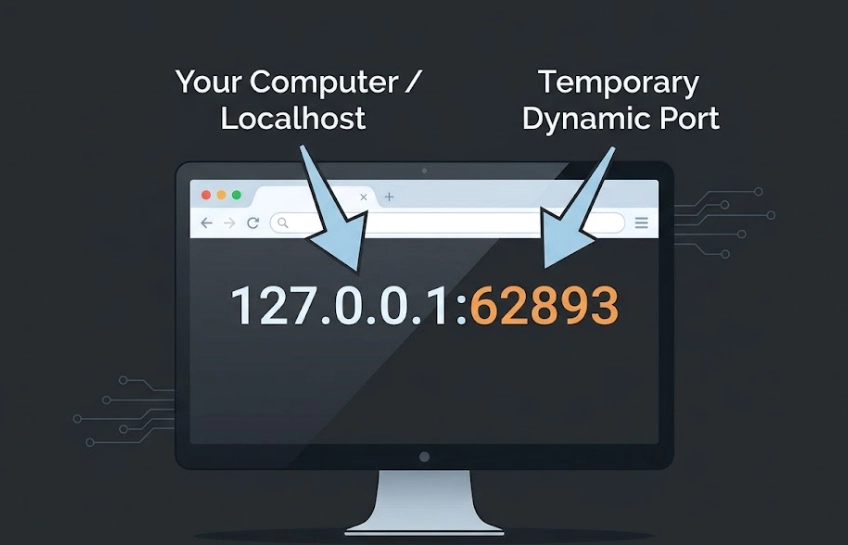
If you’ve spotted 127.0.0.1:62893 in your browser bar, a log file, or a network monitoring tool, you’re not dealing with a remote server or anything suspicious. It’s your own computer communicating with itself on a temporary local port. In this post, you’ll learn exactly what 127.0.0.1:62893 means, which applications typically create it, how to find out what’s behind it right now, and whether you need to do anything about it.
Breaking Down 127.0.0.1:62893
The address has two parts separated by a colon. The left side is an IP address. The right side is a port number. Together they point to a specific service running locally on your own machine — not anywhere on the internet.
What 127.0.0.1 Actually Means
127.0.0.1 is the loopback IP address, better known as “localhost.” Every device running a standard TCP/IP stack reserves this address for internal, self-referential communication. When any application connects to 127.0.0.1, it’s sending data to itself — nothing leaves your machine, and no outside party can see or intercept it.
The entire 127.0.0.0/8 block is reserved for loopback under RFC 5735, though 127.0.0.1 is the specific address you’ll encounter almost every time. You’ll also see it written as localhost:62893 — the two forms are identical.
What Port 62893 Represents
Port 62893 sits in the ephemeral port range, which spans from 49152 to 65535. Ports in this range don’t belong to any fixed service. The operating system assigns them on the fly, temporarily, when a process needs to open a connection.
Contrast that with fixed assignments like port 80 (HTTP), port 443 (HTTPS), or port 22 (SSH). Those are permanent. Port 62893 was simply the next available number your OS grabbed at that moment — a different session might use 58741 or 51200 instead.
Why Did 127.0.0.1:62893 Appear on Your Screen?
Several situations make this address show up, and most of them are completely routine.
Apps That Use Dynamic Local Ports
Plenty of everyday software opens a local HTTP server in the background to handle communication between its own processes. Common culprits include:
- VS Code — extensions like Live Server or Language Server Protocol tools bind to local dynamic ports
- Spotify — its web helper uses local ports to talk to the desktop app
- Node.js or Python dev servers — when the default port is in use, they fall back to an available one
- Electron apps — desktop software built on web technology often spins up internal renderers on ephemeral ports
- Claude Desktop and other AI tools — local agents frequently listen on dynamic ports for command and response handling
- Browser extensions — some extensions run a local server to communicate between the browser and a native desktop app
When It Shows Up in a Browser
If 127.0.0.1:62893 appeared directly in your browser’s address bar, a local web server either opened intentionally (through a dev tool) or an app navigated your browser there automatically. Some debugging tools, preview servers, and OAuth flows redirect to local ports as part of their normal workflow.
If you got a “connection refused” or “unable to connect” error, it just means nothing was listening on that port at that moment — the service had already closed, or the port shifted to a new number.
How to Check What’s Running on Port 62893
You can identify the exact process behind any local port in seconds using built-in OS tools.
On Windows
Open Command Prompt or PowerShell and run:
netstat -ano | findstr :62893
You’ll see the connection status and a Process ID (PID). To match that PID to an app, open Task Manager → Details tab → find the matching PID row. The “Name” column tells you exactly which program it is.
On Mac and Linux
Open Terminal and run either of these:
Both commands show the process name, PID, and connection state. The process name alone usually tells you which app opened it.
Is 127.0.0.1:62893 Safe?
Yes, in almost every case. The loopback address is completely isolated — nothing from the internet can reach it. Another device on your local Wi-Fi network can’t connect to it either. It’s accessible only to processes running on your own machine.
The one scenario worth a closer look: if an unknown process is repeatedly opening ports on your machine and you can’t identify it using the commands above, that’s worth investigating. Running lsof or netstat will give you the process name. A quick search for that name will usually clear things up immediately.
How to Close or Free Up a Local Port
The simplest way: close the app that opened it. The OS reclaims the port automatically once the process ends. If you need to force it:
Since 62893 is a dynamic port, you don’t need to “unblock” it in any firewall — it was never permanently assigned to anything and won’t be reused unless an app requests it again.
Frequently Asked Questions About 127.0.0.1:62893
Yes. Localhost always resolves to 127.0.0.1 on standard systems. Your browser and most networking tools treat them as identical — both point to your own machine on port 62893.
No. The loopback address is strictly local. Another device on your network — or anything on the internet — can’t reach it. It’s only accessible to processes running on the same machine.
Ephemeral ports are assigned dynamically. Each time a process opens a new connection, the OS picks an available number from the dynamic range (49152–65535). It won’t repeat unless the app specifically requests a fixed port.
It means nothing is currently listening on that port. The service that was running there has ended, or it moved to a different port number. It’s not an error with your system — just an empty socket.
Generally, no. Dynamic ports are temporary and don’t need manual firewall rules. Firewalls typically don’t block loopback traffic by default anyway, since it’s all internal. If you’re seeing repeated activity you don’t recognize, use the process-checking commands above first.
127.0.0.1:62893 is nothing out of the ordinary. It’s a local address pointing to your own machine, with port 62893 being a short-lived number the OS handed to whatever service needed it at that moment. It’s completely cut off from the internet and poses no risk on its own. If you want to know which specific app is behind it, the netstat or lsof commands answer that in seconds. For a deeper look at how ports and local networking work, Mozilla’s MDN port documentation is a solid starting point.
Found this useful? Check out related guides on localhost networking, port forwarding, and local dev server setup.



No Comment! Be the first one.