

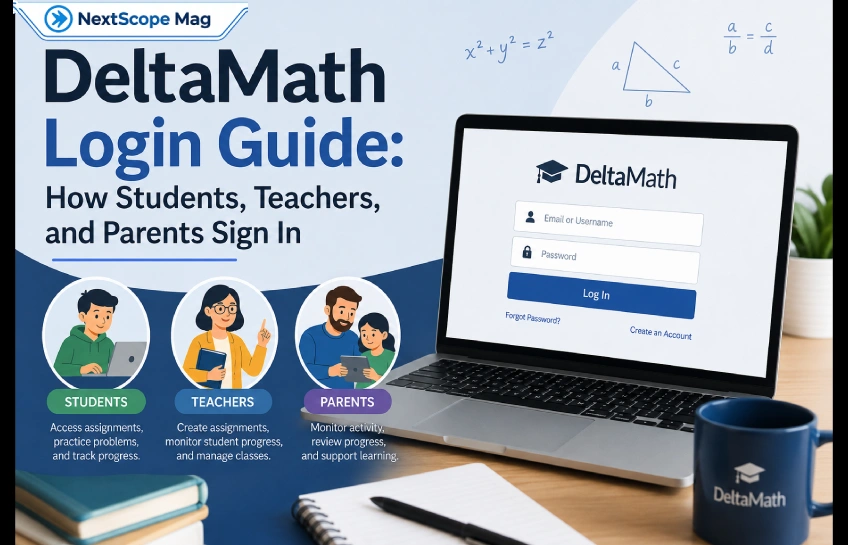
If you searched for delta math login, you probably just want to get into your account fast. Good news: it only takes a few steps. This guide walks you through the whole process, whether you’re a student, a teacher, or a parent trying to check on homework.
DeltaMath is a browser-based math practice site used by millions of students in middle school and high school. Teachers assign problem sets, students solve them, and the system gives instant feedback. But before any of that happens, you need to log in the right way.
Let’s break it down step by step.
DeltaMath Login Options at a Glance
Direct answer: DeltaMath offers three main ways to log in: a standard email and password, Sign in with Google, and school single sign-on (SSO) through Clever, Google Classroom, ClassLink, Canvas, or Schoology.
Not every school offers every option. Your login method depends on how your teacher or district set up the platform. Here’s a quick comparison:
| Login Method | Who Uses It | What You Need |
|---|---|---|
| Email + Password | Students and teachers with a direct account | Registered email and password |
| Sign in with Google | Schools using Google Workspace or Google Classroom | School Google account |
| Clever SSO | Districts with a site-wide Clever license | Clever login credentials |
| Other SSO (ClassLink, Canvas, Schoology) | Schools using those platforms | School-issued login |
If you’re not sure which one applies to you, ask your teacher. They’ll know exactly how your school connected DeltaMath.
How to Log Into DeltaMath as a Student
Direct answer: Go to deltamath.com, click Login in the top-right corner, select Student, then enter your email and password or click Sign in with Google.
Here’s the full process:
- Open your browser and go to deltamath.com.
- Click the Login button in the top-right corner.
- Choose the Student option.
- Type in your registered email and password.
- If your school uses Google, click Sign in with Google instead and pick your school account.
- Click through to your dashboard, where you’ll see your assigned problem sets.
One important tip: always use the exact Google account your school enrolled you with. A personal Gmail account will create a brand-new, empty account that isn’t connected to your class.
First-Time vs. Returning Students
If this is your first time, you won’t be able to log in yet. You’ll need to register first, and that means you need a class code.
Returning students skip registration entirely. Just enter your email and password (or use Google SSO) and you’re in.
How to Create a DeltaMath Student Account (Class Code Guide)
Direct answer: New students need an 8-character class code from their teacher. Enter it during registration to link your account to the right class and assignments.
Here’s how registration works:
- Go to the DeltaMath students page and click Register (not Login).
- Enter the class code your teacher gave you.
- Fill in your name, email, and a password.
- Students under 13 can often register with just a username, skipping the email step.
- Submit the form to create your account.
Once you’re registered, that class code is done its job. You won’t need it again unless you’re joining a second class with a different teacher. Many students juggle more than one DeltaMath class, and each one comes with its own separate code.
If you lose your code or never got one, don’t try to guess it. Ask your teacher to resend it. Codes stay linked to a specific class and don’t change unless the teacher resets them.
How to Log Into DeltaMath as a Teacher
Direct answer: Teachers log into DeltaMath by clicking Login on the homepage, selecting Teacher, and entering their registered email and password, or using Google or Clever SSO if their school has it set up.
Setting up a teacher account for the first time looks like this:
- Go to deltamath.com and click Login, then Teacher.
- Choose Sign Up if you’re new, and register using a work email address.
- Confirm your account through the verification email.
- Create your first class from the dashboard.
- Share the class code with your students.
Once you’re set up, your teacher dashboard lets you build assignments, track student progress, and manage multiple class sections at once. Each class gets its own unique code, so a teacher running four periods will end up with four different codes to hand out.
Using Google or Clever to Log Into DeltaMath
Direct answer: Sign in with Google works if your school uses Google Workspace or Google Classroom. Clever SSO works if your district has set up a site-wide Clever integration. Both let you skip creating a separate DeltaMath password.
DeltaMath connects with several school systems, including Google Classroom, Clever, ClassLink, Canvas, Schoology, and Infinite Campus. Which ones show up for you depends entirely on your school’s license and setup.
A few things worth knowing:
- With Google Classroom integration, student accounts are often created automatically, so you may never need a class code at all.
- With Clever, your teacher has to launch DeltaMath from Clever at least once before student logins will work.
- If Clever access doesn’t seem to work, it may just mean the teacher hasn’t triggered that first launch yet.
Common DeltaMath Login Problems and Fixes
Direct answer: Most DeltaMath login problems come down to a wrong password, an expired class code, or signing in with the wrong account type. Resetting your password or checking with your teacher solves the majority of cases.
Here are the most common issues and how to fix them:
- Wrong username or password: Click the forgot password link after one failed attempt. A reset email will be sent to your registered address. Check your spam folder if it doesn’t show up.
- No email on file: If you registered without an email, ask your teacher to reset your password from their Manage Students page.
- Class or assignments not showing up: This usually means you used the wrong class code, or you created a duplicate account with a personal Google login instead of your school one.
- Clever or Google sign-in errors: Make sure you’re using your official school account, not a personal one. If it still fails, contact your school’s IT support.
- Wrong website: Double-check the URL is deltamath.com. Some copycat sites use similar names, so always bookmark the real one.
Accessing DeltaMath from Home vs. School Devices
Direct answer: DeltaMath works the same way from home or school since it runs entirely in the browser, but school network filters or SSO restrictions can sometimes block access outside school devices.
If DeltaMath works fine at school but not at home, it’s usually one of these:
- Your school’s SSO system (like Clever) only recognizes school-managed devices.
- A home network filter or browser extension is blocking the site.
- You’re trying to use a personal Google account instead of your school one.
Switching to a standard email and password login, if your teacher allows it, often solves home access problems.
How Parents Can See DeltaMath Progress
Direct answer: DeltaMath doesn’t have a separate parent portal. Parents typically check progress by logging in with their child’s credentials, asking the teacher for a report, or using Google Classroom Guardian Summaries if the school has that feature turned on.
If you’re a parent and want to stay in the loop, the simplest approach is to ask your child’s teacher directly. Many teachers can generate a progress report and send it by email on request.
Tips for Using DeltaMath Effectively After Login
Once you’re in, a few habits make the experience smoother:
- Use the instant feedback on wrong answers to understand your mistake before trying again.
- Take advantage of the built-in calculator and graphing tools instead of switching apps.
- Log out on shared or school computers when you’re done.
- Keep your password somewhere safe so you’re not locked out the night before an assignment is due.
DeltaMath Login: Frequently Asked Questions
Do I need a class code every time I log in? No. You only need it once, during registration. After that, you log in with your email and password or SSO.
How do I reset my DeltaMath password? Click the forgot password link on the login page after a failed attempt, then check your email for the reset link. If you don’t have an email on file, your teacher can reset it for you.
Why doesn’t Sign in with Google work for me? You’re likely using a personal Google account instead of your school one, or your school hasn’t enabled Google SSO for DeltaMath.
Can I use DeltaMath without a school account? Generally no. Student accounts are tied to a class through a class code or school integration, so you’ll need your teacher’s information to register.
Is DeltaMath safe for students? Yes. It’s a widely used classroom tool, and accounts are managed through school-approved logins like class codes, Google Classroom, or Clever SSO.
Can I change my class code myself? No. Only your teacher can generate or reset a class code.
What if my school uses Canvas or Schoology instead of DeltaMath’s own login page? You’ll access DeltaMath assignments directly through that platform rather than logging in separately at deltamath.com.
Does DeltaMath have a mobile app? No. It’s browser-based only, but you can add it to your phone’s home screen for quicker access.
Can multiple teachers be added to one student account? Yes. Students taking more than one class on DeltaMath can add each teacher’s code separately without losing their existing work.
Why is my homepage greyed out after logging in? This can happen if a required setup step, like confirming your school, wasn’t completed. Log in again and finish that step.
Conclusion
Logging into DeltaMath is simple once you know your login method: email and password, Google, or school SSO. Students need a class code the first time only, teachers set up classes and share codes with their students, and parents can check in through the teacher or school system rather than a separate portal. If something goes wrong, most problems come down to a password reset or a quick check-in with your teacher or school IT team.



No Comment! Be the first one.